 Shimeji Desktop Reloaded
Characters
Seven characters come with the app. You can add as many as you like, and choose who’s allowed to come out.
 ShimejiThe 2009 original
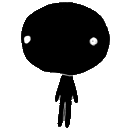 KuroShimejiIts all-black twin
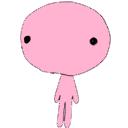 RoseCandy pink
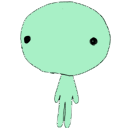 MentheMint green
 CielSky blue
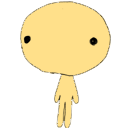 SoleilSunny yellow
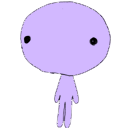 LavandeLavender
Shimeji and KuroShimeji come from Shimeji-ee. Rose, Menthe, Ciel, Soleil and Lavande are recolored versions of the original, made for Shimeji Desktop Reloaded.
Adding a character
- Open Shimeji Desktop Reloaded and go to the Characters tab.
- Click Browse the online library. The shimejis.xyz site opens in your browser.
- Pick a character and download its file from the artist’s page. It’s usually a
.zip, sometimes a.raror a.7z. - Drop the file into the Shimeji Desktop Reloaded window, or click Choose a file.
The character shows up in the list, already turned on. It’ll come along the next time the Shimeji come out.

Characters from the library
Most of them are fan art made by community artists. Shimeji Desktop Reloaded doesn’t ship them or download them for you: you get them from each artist’s page. Respect their terms, and credit the artist if you share a screenshot.
Choosing who comes out
Each character has a switch, and at least one must stay on. Characters you added also have a Remove button; the seven built-in ones stay.
If adding doesn’t work
The message “No Shimeji in this file” means the archive has no images named shime1.png,
shime2.png, and so on. You need at least ten of them in the same folder.
Some files only contain a download link or a complete program: open them to check.
A character that comes with its own behaviors keeps its images but follows Shimeji Desktop Reloaded’s behaviors: that’s what lets it leave when you come back.